


Dropzone.js turns any element into a drag and drop upload area with image previews, progress bars and a remove link for every file. In this Laravel Dropzone tutorial we will build the photo manager for a small online store: a seller drops photos onto a product, each photo uploads in its own request, Laravel validates and stores it, and a Delete link removes both the file and its database row. Photos that are already stored appear in the drop area when the page loads.
We will use Laravel 13 (version 13.39 at the time of writing) with PHP 8.4 and Dropzone 6.3.5. Everything here works on PHP 8.3 or newer.
This guide replaces our Laravel 5.5 Dropzone tutorial. That version copied Dropzone 5 into public/js, needed jQuery, moved files into public/images and deleted them by their original file name. Today Dropzone comes from npm through Vite, files live on a storage disk, the server validates every photo, and deletes go through route model binding and a policy. For private files, S3 and the File rule in depth, see our Laravel 13 file uploads guide. Here we focus on the Dropzone workflow.
Table of Contents
Prerequisites
- PHP 8.3 or newer with the
fileinfoandgdextensions (gddraws the fake images in our tests) - Composer, Node.js and npm
- Basic Laravel knowledge: routes, controllers, Blade and migrations
Creating the Project
composer create-project laravel/laravel product-photos
cd product-photos
laravel new product-photos with no starter kit works too. A new Laravel 13 app uses SQLite and has already run its first migrations.
Which Dropzone Version to Use
For years the stable release was Dropzone 5.9.3 while version 6 stayed in beta. That ended in September 2026: 6.0.0 went stable, and npm now tags 6.3.5 as latest. Some pages of the Dropzone documentation still call version 6 a beta, so don’t let that confuse you.
We will use 6.3.5. It has no dependencies, ships its own TypeScript types and needs no jQuery. The change from version 5 that matters most here: Dropzone no longer attaches itself to .dropzone elements automatically, so we create the instance ourselves. Stay on 5.9.3 only if you must support Internet Explorer.
Creating the Product and Image Tables
Every photo belongs to a product, and every product belongs to the seller who listed it. Generate both models with their migrations:
php artisan make:model Product -m
php artisan make:model ProductImage -m
I avoided the shorter name Image because Laravel 13 already has a global Image facade.
Open the products migration in database/migrations and replace the Schema::create() call:
Schema::create('products', function (Blueprint $table) {
    $table->id();
    $table->foreignId('user_id')->constrained();
    $table->string('name');
    $table->timestamps();
});
Then do the same in the product images migration:
Schema::create('product_images', function (Blueprint $table) {
    $table->id();
    $table->foreignId('product_id')->constrained();
    $table->string('path');
    $table->string('original_name');
    $table->unsignedInteger('size');
    $table->timestamps();
});
path is relative to the public disk. original_name and size are only for display, because Dropzone shows them for photos we load from the database.
Replace the contents of app/Models/Product.php:
<?php

namespace App\Models;

use Illuminate\Database\Eloquent\Attributes\Fillable;
use Illuminate\Database\Eloquent\Model;
use Illuminate\Database\Eloquent\Relations\BelongsTo;
use Illuminate\Database\Eloquent\Relations\HasMany;

#[Fillable(['name'])]
class Product extends Model
{
    /**
     * The most photos a product may have.
     */
    public const MAX_IMAGES = 8;

    public function user(): BelongsTo
    {
        return $this->belongsTo(User::class);
    }

    public function images(): HasMany
    {
        return $this->hasMany(ProductImage::class);
    }
}
The controller, the view and the JavaScript all read MAX_IMAGES, so the limit lives in one place. Now replace app/Models/ProductImage.php:
<?php

namespace App\Models;

use Illuminate\Database\Eloquent\Attributes\Appends;
use Illuminate\Database\Eloquent\Attributes\Fillable;
use Illuminate\Database\Eloquent\Attributes\Visible;
use Illuminate\Database\Eloquent\Casts\Attribute;
use Illuminate\Database\Eloquent\Model;
use Illuminate\Database\Eloquent\Relations\BelongsTo;
use Illuminate\Support\Facades\Storage;

#[Fillable(['path', 'original_name', 'size'])]
#[Visible(['id', 'original_name', 'size', 'url'])]
#[Appends(['url'])]
class ProductImage extends Model
{
    public function product(): BelongsTo
    {
        return $this->belongsTo(Product::class);
    }

    /**
     * The public URL of the stored file.
     */
    protected function url(): Attribute
    {
        return Attribute::get(fn () => Storage::disk('public')->url($this->path));
    }
}
The #[Visible] and #[Appends] attributes decide what the model looks like as JSON: the id, the original name, the size in bytes and a computed url. Dropzone receives exactly this shape after an upload and when the page loads. The url accessor asks the public disk for the address, which is your APP_URL followed by /storage/ and the path.
Open app/Models/User.php, import Illuminate\Database\Eloquent\Relations\HasMany and add the other side of the relationship:
public function products(): HasMany
{
    return $this->hasMany(Product::class);
}
Finally, give the seeded test user a product. In database/seeders/DatabaseSeeder.php, replace the User::factory()->create() call inside run():
$user = User::factory()->create([
    'name' => 'Test User',
    'email' => 'test@example.com',
]);

$user->products()->create(['name' => 'Ceramic Coffee Mug']);
Run the migrations and the seeder:
php artisan migrate
php artisan db:seed
Linking the Public Disk and Setting APP_URL
The public disk keeps its files in storage/app/public, which the browser cannot reach until you link it to public/storage:
php artisan storage:link
Next, open .env and make APP_URL match the address you open in the browser. php artisan serve prints http://127.0.0.1:8000, but a new app ships with http://localhost:8000:
APP_URL=http://127.0.0.1:8000
This matters more with Dropzone than usual. Dropzone draws stored photos onto a canvas to make their thumbnails, and the browser blocks that for images from another origin. To the browser, localhost and 127.0.0.1 are different origins.
How the Laravel Dropzone Upload Works
Before we write the controller and the JavaScript, here is the whole round trip:
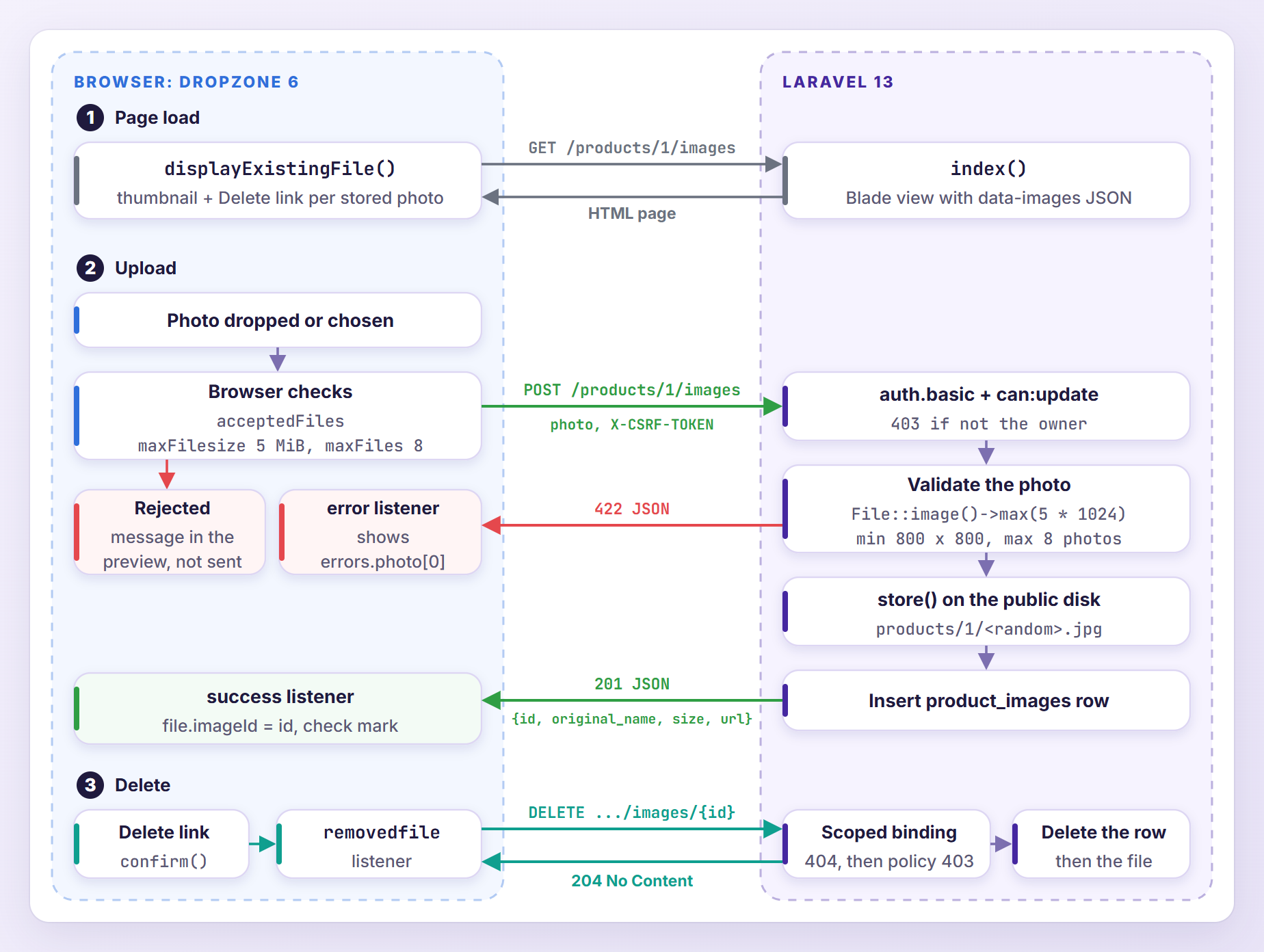
Dropzone checks the file type, size and count in the browser and sends every accepted file in its own POST request, in a field named photo. Laravel validates the file, stores it, saves a row and answers with JSON. The id from that answer is what the Delete link later sends back in a DELETE request.
Defining the Routes and the Policy
Replace routes/web.php with the following:
<?php

use App\Http\Controllers\ProductImageController;
use Illuminate\Support\Facades\Route;

Route::get('/', function () {
    return view('welcome');
});

// auth.basic keeps the demo free of a login page. Use 'auth' if your app has one.
Route::middleware('auth.basic')
    ->can('update', 'product')
    ->scopeBindings()
    ->group(function () {
        Route::get('/products/{product}/images', [ProductImageController::class, 'index'])
            ->name('products.images.index');
        Route::post('/products/{product}/images', [ProductImageController::class, 'store'])
            ->name('products.images.store');
        Route::delete('/products/{product}/images/{image}', [ProductImageController::class, 'destroy'])
            ->name('products.images.destroy');
    });
auth.basic makes the browser show a login prompt (sign in as test@example.com with the password password) and keeps this tutorial independent of any starter kit. Calling can('update', 'product') on the group adds the can:update,product middleware to all three routes, so anyone who does not own the product gets a 403. scopeBindings() makes Laravel load {image} through $product->images(), so a photo that belongs to a different product returns a 404, even for its owner.
Generate the policy:
php artisan make:policy ProductPolicy --model=Product
Replace the generated stubs in app/Policies/ProductPolicy.php with a single rule:
<?php

namespace App\Policies;

use App\Models\Product;
use App\Models\User;

class ProductPolicy
{
    /**
     * Only the seller who listed a product may change it (and its photos).
     */
    public function update(User $user, Product $product): bool
    {
        return $user->id === $product->user_id;
    }
}
Laravel finds the policy on its own, because App\Policies\ProductPolicy follows the naming convention for App\Models\Product.
Writing the Upload Controller
Generate the controller:
php artisan make:controller ProductImageController
Replace the contents of app/Http/Controllers/ProductImageController.php:
<?php

namespace App\Http\Controllers;

use App\Models\Product;
use App\Models\ProductImage;
use Illuminate\Http\JsonResponse;
use Illuminate\Http\Request;
use Illuminate\Http\Response;
use Illuminate\Support\Facades\Storage;
use Illuminate\Validation\Rule;
use Illuminate\Validation\Rules\File;
use Illuminate\Validation\ValidationException;
use Illuminate\View\View;

class ProductImageController extends Controller
{
    public function index(Product $product): View
    {
        return view('products.images', [
            'product' => $product,
            'images' => $product->images,
        ]);
    }

    public function store(Request $request, Product $product): JsonResponse
    {
        $request->validate([
            'photo' => [
                'required',
                File::image()
                    ->max(5 * 1024)
                    ->dimensions(Rule::dimensions()->minWidth(800)->minHeight(800)),
            ],
        ]);

        if ($product->images()->count() >= Product::MAX_IMAGES) {
            throw ValidationException::withMessages([
                'photo' => 'A product can have up to '.Product::MAX_IMAGES.' photos.',
            ]);
        }

        $photo = $request->file('photo');

        $image = $product->images()->create([
            'path' => $photo->store("products/{$product->id}", 'public'),
            'original_name' => $photo->getClientOriginalName(),
            'size' => $photo->getSize(),
        ]);

        return response()->json($image, 201);
    }

    public function destroy(Product $product, ProductImage $image): Response
    {
        $image->delete();

        Storage::disk('public')->delete($image->path);

        return response()->noContent();
    }
}
index() hands the product and its photos to the view. The other two methods deserve a closer look.
Validating Each Photo
File::image() inspects the file’s content, not its name, and accepts jpg, jpeg, png, gif, bmp, webp, avif, heic and heif. SVG is rejected unless you call File::image(allowSvg: true). The dimensions() rule rejects photos smaller than 800 x 800 pixels, something Dropzone cannot check before it uploads.
Pay attention to max(5 * 1024). Laravel measures uploaded files in kilobytes of 1,024 bytes, so 5 * 1024 is exactly 5 MiB, the unit of Dropzone’s maxFilesize option. The tempting max('5mb') means 5,000 kilobytes, because the File rule converts size suffixes with decimal units. A photo of 5,150,000 bytes would then pass Dropzone’s check and fail on the server.
The photo limit is checked after validation. ValidationException::withMessages() produces the same JSON as a failed rule, so Dropzone needs no special case for it.
Dropzone sends an Accept: application/json header with every upload, so Laravel answers a failed validation with a 422 JSON response instead of a redirect. For a 480 x 480 photo it looks like this:
{"message":"The photo field has invalid image dimensions.","errors":{"photo":["The photo field has invalid image dimensions."]}}
Storing the File and Answering With JSON
store("products/{$product->id}", 'public') saves the file on the public disk under a random 40 character name, with an extension guessed from the content, and returns the path. The original name goes into the database for display only. The response is the new model with a 201 status. Here is the response to the first upload:
{"original_name":"mug-front.jpg","size":49699,"id":1,"url":"http:\/\/127.0.0.1:8000\/storage\/products\/1\/iUjCCbGpqERX2oMwbbMjzncuDZlebdhM1vYakFFZ.jpg"}
destroy() receives a photo that is guaranteed to belong to the product and the signed-in seller, thanks to the scoped binding and the policy. It deletes the row, then the file, and answers with 204 No Content.
Installing Dropzone With npm and Vite
Install the package:
npm install dropzone
This adds "dropzone": "^6.3.5" to package.json. We import the library and its stylesheet in resources/js/app.js in a moment. While you work, run php artisan serve in one terminal and npm run dev in another (or build the assets once with npm run build).
If you would rather skip the build step, Dropzone also works from a CDN:
<link rel="stylesheet" href="https://unpkg.com/dropzone@6.3.5/dist/dropzone.css">
<script src="https://unpkg.com/dropzone@6.3.5/dist/dropzone-min.js"></script>
The script defines a global Dropzone, so the code from app.js below runs in a <script> tag placed after it, minus the two import lines.
Creating the Upload Page
Create resources/views/products/images.blade.php:
<!DOCTYPE html>
<html lang="en">
<head>
    <meta charset="utf-8">
    <meta name="viewport" content="width=device-width, initial-scale=1">
    <meta name="csrf-token" content="{{ csrf_token() }}">
    <title>Photos of {{ $product->name }}</title>
    @vite(['resources/css/app.css', 'resources/js/app.js'])
</head>
<body class="bg-gray-50 text-gray-900">
    <main class="mx-auto max-w-3xl px-6 py-10">
        <p class="text-sm text-gray-500">Products / {{ $product->name }}</p>
        <h1 class="mt-1 text-2xl font-semibold">Product photos</h1>
        <p class="mt-2 mb-6 text-gray-600">
            JPG, PNG or WebP, at least 800 x 800 pixels and up to 5 MB each.
            A product can have up to {{ App\Models\Product::MAX_IMAGES }} photos.
        </p>

        <div id="product-images" class="dropzone"
             data-upload-url="{{ route('products.images.store', $product) }}"
             data-max-files="{{ App\Models\Product::MAX_IMAGES }}"
             data-images="{{ $images->toJson() }}"></div>
    </main>
</body>
</html>
A few things to notice:
- The
csrf-tokenmeta tag hands the session’s CSRF token to JavaScript. @viteloads the compiled script plus two stylesheets: Tailwind, which a new Laravel 13 app already compiles fromresources/css/app.css, and Dropzone’s CSS, which we import from JavaScript.- The drop area is a plain
div. Itsdata-attributes pass the upload URL, the photo limit and the stored photos to JavaScript. Blade escapes the quotes in the JSON, and the browser decodes them again when the script reads the attribute.
Configuring Dropzone in app.js
Replace the contents of resources/js/app.js:
import Dropzone from 'dropzone';
import 'dropzone/dist/dropzone.css';

const element = document.querySelector('#product-images');

if (element) {
    const csrfToken = document.querySelector('meta[name="csrf-token"]').content;
    const uploadUrl = element.dataset.uploadUrl;

    const dropzone = new Dropzone(element, {
        url: uploadUrl,
        paramName: 'photo',
        headers: { 'X-CSRF-TOKEN': csrfToken },
        acceptedFiles: 'image/jpeg,image/png,image/webp',
        maxFilesize: 5, // MiB, the same limit as File::image()->max(5 * 1024)
        maxFiles: Number(element.dataset.maxFiles),
        parallelUploads: 2,
        addRemoveLinks: true,
        dictDefaultMessage: 'Drop product photos here or click to browse',
        dictRemoveFile: 'Delete',
        dictRemoveFileConfirmation: 'Delete this photo?',
    });

    // Remember the database id that the server sends back.
    dropzone.on('success', (file, response) => {
        file.imageId = response.id;
    });

    // Laravel answers with JSON such as {"message": "...", "errors": {"photo": ["..."]}}.
    dropzone.on('error', (file, message, xhr) => {
        if (!xhr) {
            return; // Dropzone's own checks (size, type, count) already have a readable message.
        }

        const text = typeof message === 'object'
            ? (message.errors?.photo?.[0] ?? message.message)
            : `Upload failed (HTTP ${xhr.status}).`;

        file.previewElement.querySelector('[data-dz-errormessage]').textContent = text;
    });

    dropzone.on('removedfile', async (file) => {
        if (!file.imageId) {
            return; // Rejected or cancelled files were never stored.
        }

        const response = await fetch(`${uploadUrl}/${file.imageId}`, {
            method: 'DELETE',
            headers: { 'X-CSRF-TOKEN': csrfToken, Accept: 'application/json' },
        });

        if (!response.ok) {
            alert(`${file.name} could not be deleted. Please reload the page and try again.`);
        }
    });

    // Show the photos that are already stored.
    for (const image of JSON.parse(element.dataset.images)) {
        const file = { name: image.original_name, size: image.size, imageId: image.id, accepted: true };

        dropzone.displayExistingFile(file, image.url);
        dropzone.files.push(file); // Counts towards maxFiles.
    }
}
app.js runs on every page that loads it, so everything sits inside if (element). Here is what the options do:
paramName: 'photo'is the field name Laravel validates. Dropzone’s default isfile.headersadds the CSRF token to every upload request.acceptedFiles,maxFilesizeandmaxFilesreject files in the browser before anything is sent.maxFilesizeis in MiB.parallelUploads: 2uploads two files at a time (the default) and queues the rest.addRemoveLinksadds a link under every preview, and thedictoptions change its wording and ask for confirmation.
Notice what is missing: the Dropzone.autoDiscover = false line from older tutorials. Version 6 removed automatic discovery, so the drop area exists only because we call new Dropzone().
Sending the CSRF Token
Laravel 13’s PreventRequestForgery middleware first checks the browser’s Sec-Fetch-Site header and lets same-origin requests through without a token. Browsers only send that header to secure origins (HTTPS plus localhost and 127.0.0.1), so on a plain HTTP host such as http://shop.test Laravel falls back to the token. In my tests, an upload without the header worked on 127.0.0.1 and failed with a 419 on shop.test. Always send the token.
If your drop area is a <form>, @csrf inside it works as well, because Dropzone posts the form’s fields with every file. The meta tag is still needed for the fetch() call that deletes photos.
Showing Laravel’s Validation Errors
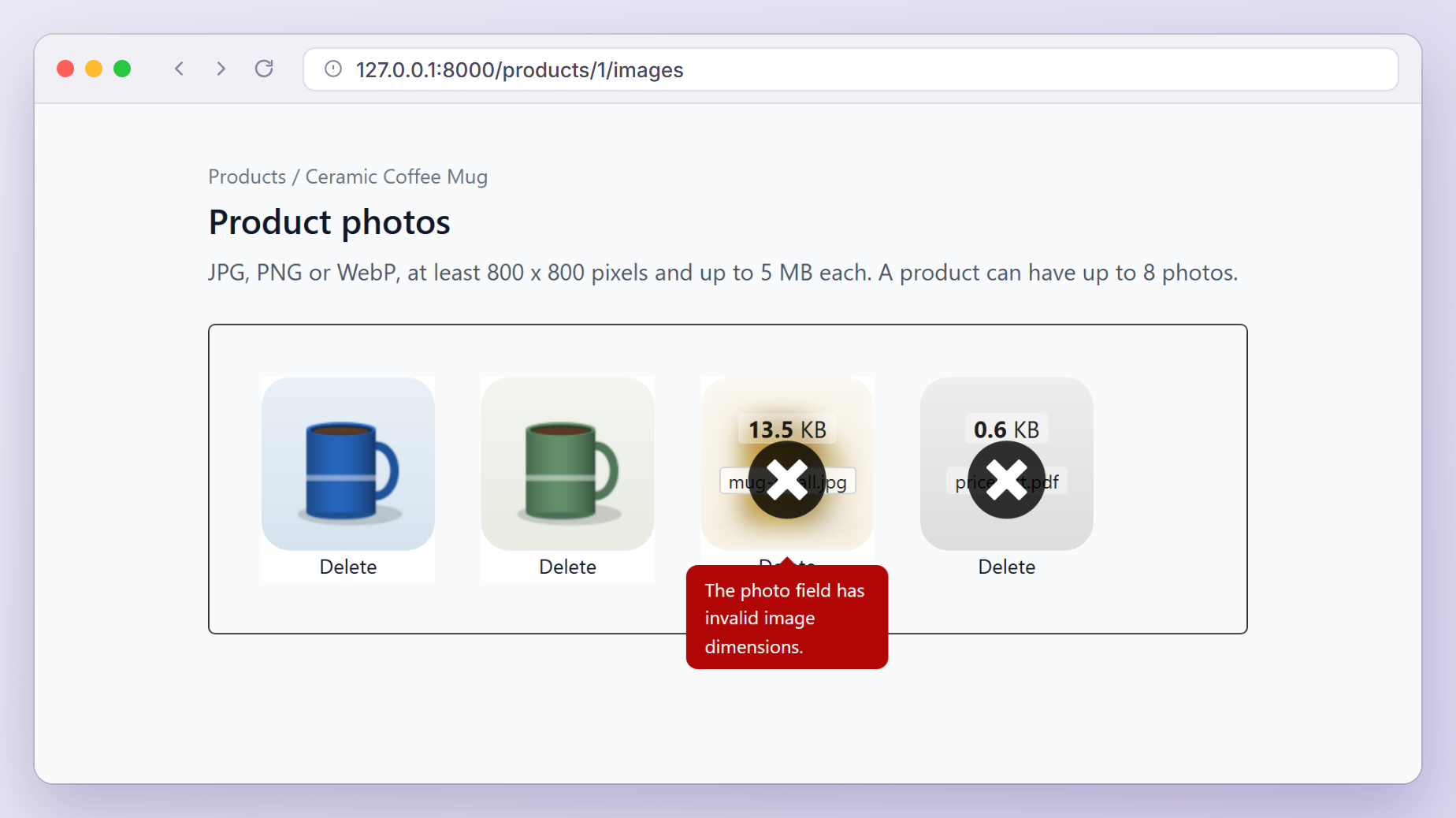
Dropzone copies the server’s response into the preview’s error message. That works for plain text, but Laravel’s errors are JSON objects, and Dropzone 6.3.5 then shows “[object Object]”. Our error listener runs after Dropzone’s own handler and replaces the text with the first error for photo, or with the message key for responses such as 403 or 419. Errors that Dropzone raises itself, like a file that is too big, come without an xhr and keep their message. A response that is not JSON, such as a web server’s error page, becomes “Upload failed (HTTP 413).” or similar.
The default theme shows the message when you hover over a failed preview. Here the 480 x 480 photo failed on the server, while the PDF never left the browser:
Deleting Photos With the Remove Link
After a successful upload, the success listener keeps the database id on Dropzone’s file object. Clicking Delete asks for confirmation, removes the preview and fires removedfile, and our listener sends DELETE /products/1/images/{id} with the CSRF token. Files that failed or were cancelled have no id, so nothing is sent for them. If the server refuses, for example because the photo was already deleted in another tab, the seller gets an alert.
Loading the Photos That Are Already Stored
displayExistingFile() adds a preview for a file that already lives on the server and draws its thumbnail from the URL. It only needs name and size, so we can add our own imageId, which makes the Delete link work for these photos too.
Dropzone does not count displayed files against maxFiles, so we push them into dropzone.files with accepted: true. A product with four stored photos then accepts four more, and deleting one frees a slot.
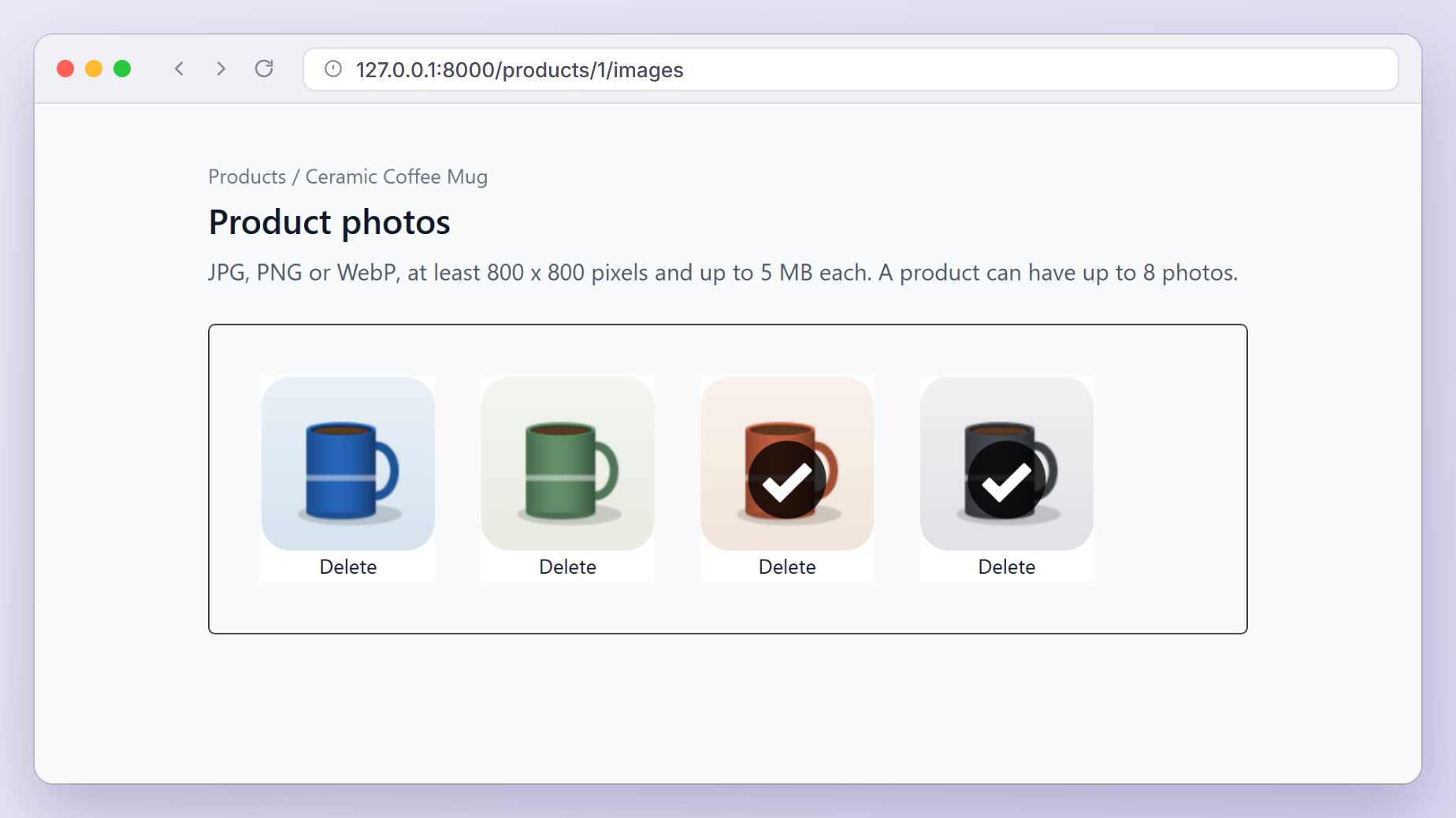
Open http://127.0.0.1:8000/products/1/images and sign in. Here is the page after a reload (two stored photos) and two new uploads:
Upload Limits in Dropzone and PHP
Six limits guard the upload, and each one produces a different message:
| Limit | Set in | What the user sees |
|---|---|---|
acceptedFiles | Dropzone | “You can’t upload files of this type.” (nothing is sent) |
maxFilesize: 5 | Dropzone | “File is too big (6.45MiB). Max filesize: 5MiB.” (nothing is sent) |
maxFiles | Dropzone | “You cannot upload any more files.” (nothing is sent) |
File::image()->max(5 * 1024) | Laravel | 422: “The photo field must not be greater than 5120 kilobytes.” |
upload_max_filesize | php.ini | 422: “The photo failed to upload.” |
post_max_size | php.ini | 413: “The POST data is too large.” |
PHP’s built-in defaults are 2M for upload_max_filesize and 8M for post_max_size. With those, a 3 MB photo passes Dropzone’s check and is then dropped by PHP. Dropzone sends one photo per request, so raise upload_max_filesize above 5M and keep post_max_size a little higher, in the php.ini your web server uses:
upload_max_filesize = 6M
post_max_size = 8M
Restart PHP-FPM or Apache afterwards. On nginx, also raise client_max_body_size, which defaults to 1m. Our file uploads guide covers these server limits in more detail.
Testing the Uploads
Generate a test class:
php artisan make:test ProductImageTest
Replace tests/Feature/ProductImageTest.php with:
<?php

namespace Tests\Feature;

use App\Models\Product;
use App\Models\ProductImage;
use App\Models\User;
use Illuminate\Foundation\Testing\RefreshDatabase;
use Illuminate\Http\UploadedFile;
use Illuminate\Support\Facades\Storage;
use Tests\TestCase;

class ProductImageTest extends TestCase
{
    use RefreshDatabase;

    private User $seller;

    private Product $product;

    protected function setUp(): void
    {
        parent::setUp();

        Storage::fake('public');

        $this->seller = User::factory()->create();
        $this->product = $this->seller->products()->create(['name' => 'Ceramic Coffee Mug']);
    }

    public function test_the_seller_can_upload_a_photo(): void
    {
        $response = $this->actingAs($this->seller)
            ->postJson(route('products.images.store', $this->product), [
                'photo' => UploadedFile::fake()->image('mug-front.jpg', 1200, 1200),
            ]);

        $image = ProductImage::sole();

        $response->assertCreated()->assertExactJson([
            'id' => $image->id,
            'original_name' => 'mug-front.jpg',
            'size' => $image->size,
            'url' => Storage::disk('public')->url($image->path),
        ]);

        $this->assertStringStartsWith("products/{$this->product->id}/", $image->path);
        Storage::disk('public')->assertExists($image->path);
    }

    public function test_invalid_photos_get_json_validation_errors(): void
    {
        $upload = fn (UploadedFile $file) => $this->actingAs($this->seller)
            ->postJson(route('products.images.store', $this->product), ['photo' => $file]);

        $upload(UploadedFile::fake()->image('small.jpg', 400, 300))
            ->assertUnprocessable()
            ->assertJsonValidationErrors(['photo' => 'The photo field has invalid image dimensions.']);

        $upload(UploadedFile::fake()->create('price-list.pdf', 120, 'application/pdf'))
            ->assertJsonValidationErrors(['photo' => 'The photo field must be an image.']);

        $upload(UploadedFile::fake()->image('huge.jpg', 1200, 1200)->size(6000))
            ->assertJsonValidationErrors(['photo' => 'The photo field must not be greater than 5120 kilobytes.']);

        $this->assertDatabaseCount('product_images', 0);
        Storage::disk('public')->assertDirectoryEmpty('/');
    }

    public function test_a_product_cannot_have_more_than_the_maximum_photos(): void
    {
        foreach (range(1, Product::MAX_IMAGES) as $i) {
            $this->product->images()->create([
                'path' => "products/{$this->product->id}/old-{$i}.jpg",
                'original_name' => "old-{$i}.jpg",
                'size' => 1000,
            ]);
        }

        $this->actingAs($this->seller)
            ->postJson(route('products.images.store', $this->product), [
                'photo' => UploadedFile::fake()->image('one-more.jpg', 1000, 1000),
            ])
            ->assertJsonValidationErrors(['photo' => 'A product can have up to 8 photos.']);
    }

    public function test_the_seller_can_delete_a_photo(): void
    {
        $image = $this->uploadPhoto();

        $this->actingAs($this->seller)
            ->deleteJson(route('products.images.destroy', [$this->product, $image]))
            ->assertNoContent();

        $this->assertModelMissing($image);
        Storage::disk('public')->assertMissing($image->path);
    }

    public function test_other_users_cannot_upload_or_delete_photos(): void
    {
        $image = $this->uploadPhoto();
        $stranger = User::factory()->create();

        $this->actingAs($stranger)
            ->postJson(route('products.images.store', $this->product), [
                'photo' => UploadedFile::fake()->image('spam.jpg', 1000, 1000),
            ])
            ->assertForbidden();

        $this->actingAs($stranger)
            ->deleteJson(route('products.images.destroy', [$this->product, $image]))
            ->assertForbidden();

        $this->assertModelExists($image);
        Storage::disk('public')->assertExists($image->path);
    }

    public function test_a_photo_can_only_be_deleted_through_its_own_product(): void
    {
        $image = $this->uploadPhoto();
        $otherProduct = $this->seller->products()->create(['name' => 'Linen Tea Towel']);

        $this->actingAs($this->seller)
            ->deleteJson(route('products.images.destroy', [$otherProduct, $image]))
            ->assertNotFound();

        $this->assertModelExists($image);
    }

    private function uploadPhoto(): ProductImage
    {
        $this->actingAs($this->seller)->postJson(route('products.images.store', $this->product), [
            'photo' => UploadedFile::fake()->image('mug-side.jpg', 1000, 1000),
        ])->assertCreated();

        return ProductImage::latest('id')->first();
    }
}
Let me explain the less obvious parts:
Storage::fake('public')swaps the public disk for a temporary folder.UploadedFile::fake()->image()draws a real image with GD, so the dimensions rule has pixels to measure, whilesize(6000)only reports 6,000 kilobytes.postJson()anddeleteJson()sendAccept: application/jsonjust like Dropzone, so failures come back as JSON, andassertJsonValidationErrors()checks the message under thephotokey.- Laravel disables CSRF protection while tests run, which is why no token is sent.
- The last two tests prove the policy (403) and the scoped binding (404).
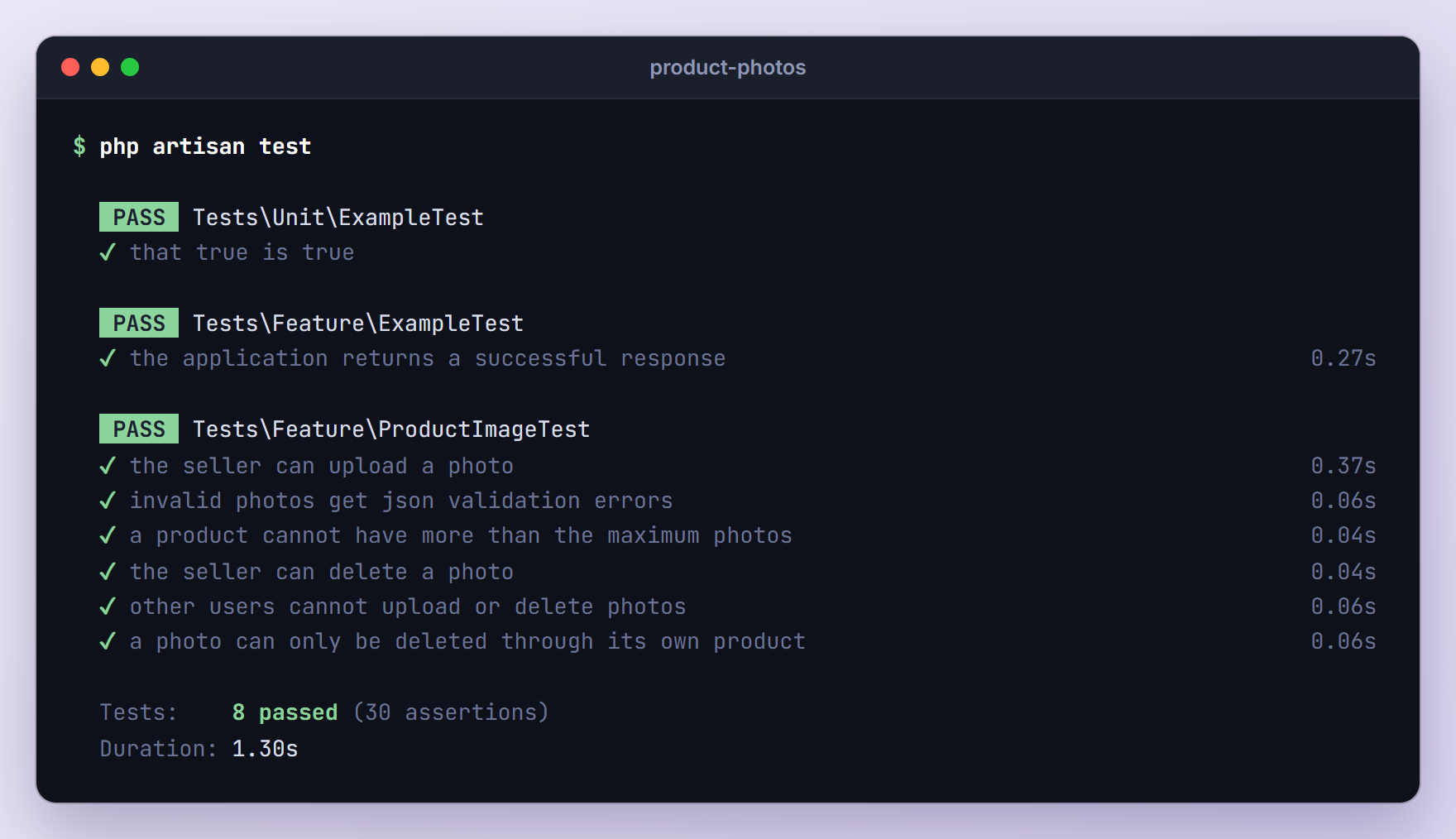
Run the suite:
php artisan test
Troubleshooting
419 “CSRF token mismatch.” on Upload
The request reached Laravel without a valid token and without a Sec-Fetch-Site: same-origin header. You will see this on plain HTTP hosts like http://shop.test or a LAN address, while the same code works on 127.0.0.1. Add the csrf-token meta tag and the headers option shown above. If the page stayed open longer than your session lifetime (SESSION_LIFETIME, 120 minutes by default), reload it to get a fresh token.
“The photo failed to upload.” or “The POST data is too large.”
PHP refused the file before Laravel could validate it. The first message means the photo exceeded upload_max_filesize. The second means the whole request exceeded post_max_size, and Laravel’s ValidatePostSize middleware answered with a 413. Raise both limits as shown above. In development you may see “Upload failed (HTTP 413).” instead, because with display_errors on, PHP prints its warning in front of the JSON.
Stored Photos Show No Thumbnail
New uploads look fine, but after a reload the previews show only a name and a size. There are two common causes. Without php artisan storage:link, the image URLs answer with a 403 (a 404 in production), because Laravel 13 serves the private local disk under /storage and that route rejects unsigned requests. If the images load but the console says “The canvas has been tainted by cross-origin data”, your APP_URL host differs from the one in the address bar. Set APP_URL to the exact address and clear any cached config with php artisan config:clear.
“Dropzone already attached.” or the Drop Area Never Appears
Dropzone 6 never attaches by itself. If you copied a declarative setup (class="dropzone" plus Dropzone.options.myDropzone) from a version 5 tutorial, nothing happens until you call new Dropzone() or Dropzone.discover(). The opposite error, “Dropzone already attached.”, means two pieces of code set up the same element: discover() plus new Dropzone(), or a CDN copy plus app.js. Keep exactly one.
“The photo field is required.”
Dropzone sent the file under a different field name. Its default paramName is file, so either set paramName: 'photo' or validate file on the server.
The Error Message Says “[object Object]”
Dropzone received Laravel’s JSON error object and printed it as text. Add the error listener from app.js, which reads errors.photo[0] or message from the response.
Upgrading From the Laravel 5.5 Dropzone Tutorial
If you are moving code from the old tutorial forward:
- Install Dropzone with npm and import it in
resources/js/app.jsinstead of copyingdropzone.jsintopublic/js. jQuery is no longer needed. - Replace the declarative
Dropzone.options.myDropzonesetup withnew Dropzone(), since version 6 has no auto discovery. - Send one file per request instead of
uploadMultiple: true, so every preview gets its own validation message. - Drop
timeout: 10000. It aborted any upload that took longer than ten seconds, and Dropzone 6 sets no timeout by default. - Store files with
store()on the public disk instead ofmove()intopublic/images, and validate them on the server with theFilerule. - Delete by id with a DELETE route, route model binding and a policy. Looking rows up by original file name deletes the wrong photo when two files share a name.
Dropzone draws its own previews, so the upload page no longer needs the 250 pixel copies the old tutorial made with Intervention Image. If your storefront needs resized images, use Laravel 13’s Image facade; the file uploads guide linked above shows an example.
Frequently Asked Questions
Does Dropzone 6 need jQuery?
No. Dropzone 6 is plain JavaScript with no dependencies, and new Dropzone(element, options) is all you need. It registers a $(...).dropzone() plugin only when jQuery is already on the page, which helps older code but is never required. In a Laravel 13 app, npm install dropzone and one import in app.js are enough.
How do I send all photos in a single request?
Set uploadMultiple: true. Dropzone then sends up to parallelUploads files per request as photo[0], photo[1] and so on, which Laravel reads as an array. Validate it with 'photo' => ['required', 'array'] and the file rules on photo.*. Errors come back under keys like photo.0, and the whole batch succeeds or fails together, which is why this tutorial sends one file per request.
How do I send extra data with each photo?
Listen to the sending event, which receives the file, the XMLHttpRequest and the FormData object for each upload. Call formData.append('color', 'Ocean blue') there and Laravel reads the value with $request->input('color'). For values that are the same for every file, the params option is simpler. With uploadMultiple, use sendingmultiple, because sending fires once per file.
Can Dropzone resize photos before uploading them?
Yes. Set resizeWidth or resizeHeight (plus resizeMimeType and resizeQuality if you want), and Dropzone resizes images in the browser before sending them. Laravel then validates the resized file, so keep the target size above any minimum your rules enforce. In this tutorial, resizing below 800 pixels would make every upload fail the dimensions rule.
Wrapping Up
We built a complete Laravel Dropzone upload page: drag and drop with previews, one validated request per photo, Laravel’s JSON errors inside the previews, Delete links that remove files and rows, stored photos on page load, and tests for every path. The same pieces work for avatars, attachments or a blog’s media library.
For every option we skipped, see the Dropzone documentation and Laravel’s file storage and file validation docs.
Learn more about Laravel:
