


The fastest way to install Laravel on Windows today needs no virtual machine at all. You either install Laravel Herd, a free app that sets up PHP, Composer and the Laravel installer in a few clicks, or you install PHP and Composer yourself and keep full control over every setting. This guide covers both on Windows 10 and 11, then creates a Laravel 13 app, serves it and fixes the errors Windows users hit most.
Our Homestead tutorial needed VirtualBox, Vagrant, Git Bash, SSH keys, a Homestead.yaml file and hand-edited hosts entries. That path has closed: the Laravel 13 Homestead docs now call it “a legacy package that is no longer actively maintained”, and Packagist marks laravel/homestead as abandoned, with its last release (v15.0.3) in April 2024.
We will use Laravel 13 (version 13.39 at the time of writing) with PHP 8.4. Everything here works on PHP 8.3 or newer, and Laravel 13 supports PHP 8.3 to 8.5.
Table of Contents
Prerequisites
- Windows 10 or 11 (64-bit) and an account that can run installers as administrator
- A terminal: Windows Terminal with PowerShell, or Command Prompt
- Node.js 22 or newer for the frontend build (covered below)
Choosing How to Install Laravel on Windows
There are three realistic setups. Herd is the quickest, and it is what most Windows developers should pick. Installing PHP and Composer by hand takes longer but shows you where everything lives, and it works next to WampServer or XAMPP. WSL 2 with Laravel Sail runs your app in Docker containers inside Linux, which suits teams that want the same services as their Linux servers.
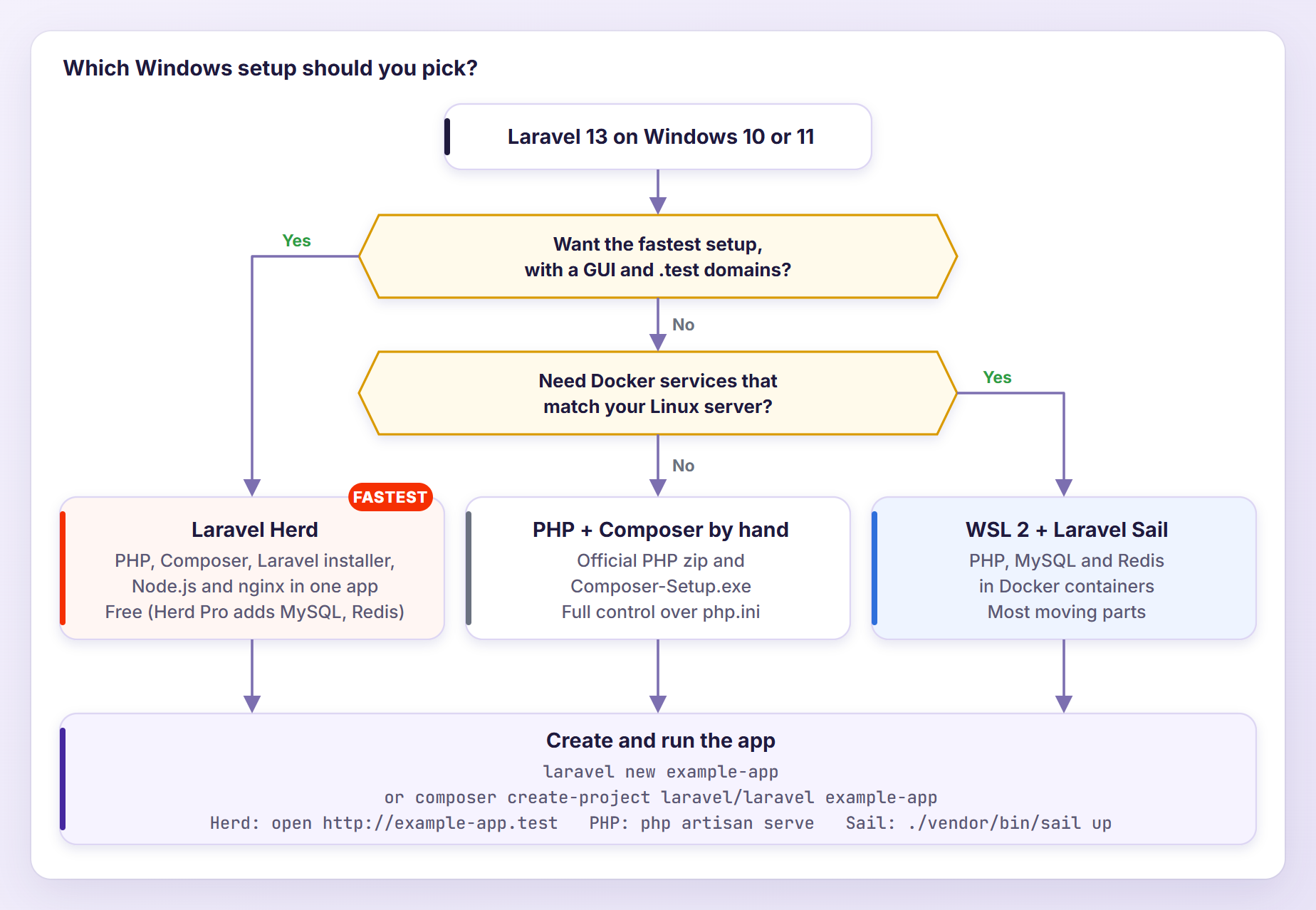
| Laravel Herd | PHP and Composer | WSL 2 and Sail | |
|---|---|---|---|
| Setup | One installer | Zip file, PATH, php.ini, Composer-Setup.exe | WSL 2, Docker, then Sail |
| Includes | PHP, Composer, Laravel installer, Node.js, nginx | PHP and Composer | PHP, MySQL, Redis and more in containers |
| Local URL | http://example-app.test | http://127.0.0.1:8000 | http://localhost |
| Switch PHP versions | Menu click or herd use | Download another zip | Edit compose.yaml |
| MySQL | Herd Pro (paid) or your own | Your own | Included |
Option 1: Install Laravel With Herd
Laravel Herd is free to download, with a paid Pro tier for extra services. It needs Windows 10 or higher and administrator rights during setup, because the installer adds a HerdHelper Windows service that writes your .test domains into the hosts file.
What Herd Installs
Download the installer from the Herd website and run it as administrator. When you open Herd, the onboarding downloads the latest PHP and Node.js versions. Afterwards Herd serves sites through its own nginx, and new terminals have php, composer, laravel, node, npm and herd on the PATH. Herd’s PHP comes with the extensions Laravel needs, so you do not have to touch php.ini.
Herd Pro adds managed MySQL, PostgreSQL, Redis and other services. The free version is enough for this tutorial because new Laravel apps use SQLite.
Creating a Site on a .test Domain
Herd parks the folder %USERPROFILE%\Herd: every app inside it is served at http://<folder-name>.test. Open PowerShell and run:
cd ~\Herd
laravel new example-app
cd example-app
herd open
laravel new asks a few questions, covered later in this guide. Because the app sits in a parked folder, herd open opens http://example-app.test in your browser, and no php artisan serve is needed.
For a project outside the Herd folder, run herd link inside it to serve it at its folder name, or herd link shop for shop.test. If you prefer Git Bash, the Herd command line docs list aliases such as alias php="php.bat" that make Herd’s commands work there.
Switching PHP Versions
Install or update PHP versions in the PHP tab of Herd’s settings, and pick the global version from the Herd menu in the system tray. The CLI does the same:
herd php:list
herd php:install 8.3
herd use 8.4
herd isolate 8.3
herd use changes the global version, while herd isolate, run inside a project, pins that one site to a version. The Herd PHP docs list the rest, such as herd unisolate.
Option 2: Install PHP and Composer Manually
This is the classic route: more steps than Herd, but every piece stays visible.
Note: The Laravel installation docs also offer a one-line PowerShell installer from php.new that installs PHP, Composer and the Laravel installer for you. Doing it by hand teaches you where php.ini lives, which pays off when something breaks.
Downloading the Right PHP Build
Open the PHP downloads page for Windows and choose a version: Laravel 13 accepts PHP 8.3, 8.4 or 8.5. Each version comes in four builds. Download the zip of the x64 Non Thread Safe build (labelled VS17 for PHP 8.4 and 8.5, VS16 for 8.3):
- x64 is the 64-bit build, which php.net recommends for almost every Windows installation.
- Non Thread Safe (NTS) is the build php.net recommends for the command line and FastCGI. The Thread Safe build is meant for Apache’s mod_php.
The builds need the Microsoft Visual C++ Redistributable for Visual Studio 2015 to 2022, which many PCs already have.
Unzipping PHP and Adding It to Your PATH
Extract the zip to C:\php, so that C:\php\php.exe exists. Then tell Windows where to find it:
- Press the Windows key, type “environment variables” and open Edit the system environment variables.
- Click Environment Variables.
- Under User variables, select Path and click Edit.
- Click New, type
C:\phpand confirm every window with OK.
Windows only reads PATH when a terminal starts, so close all terminals and open a new one.
Creating php.ini and Enabling Extensions
A fresh PHP folder has no php.ini, and without one PHP runs with only its built-in extensions. Copy the development template:
cd C:\php
copy php.ini-development php.ini
Open C:\php\php.ini in your editor. Laravel’s server requirements list Ctype, cURL, DOM, Fileinfo, Filter, Hash, Mbstring, OpenSSL, PCRE, PDO, Session, Tokenizer and XML. Running php -m before editing showed that the Windows build has Ctype, DOM, Filter, Hash, PCRE, PDO, Session, Tokenizer and XML compiled in, so only a few lines need changing. Find each of these lines and remove the semicolon in front of it:
extension_dir = "ext"

extension=curl
extension=fileinfo
extension=mbstring
extension=openssl
extension=pdo_mysql
extension=pdo_sqlite
extension=zip
Take the extension_dir line marked “On windows”, not the "./" one. Besides Laravel’s list, pdo_sqlite drives the default SQLite database, pdo_mysql is for MySQL later and zip lets Composer unpack packages. These lines were the only changes in my php.ini, and PHP found its ext folder from any directory.
Installing Composer With Composer-Setup.exe
On the Composer download page, download and run Composer-Setup.exe. It needs the PHP you just installed, installs the latest Composer and adds it to your PATH. Open a new terminal afterwards.
If WampServer or XAMPP already gives you PHP 8.3 or newer, you can add its PHP folder to PATH instead of downloading another copy. Run where php to see which php.exe Windows picks first.
Checking PHP and Composer
Run these three commands:
php -v
composer -V
php -m | findstr /i "curl fileinfo mbstring openssl pdo zip"
findstr filters the long php -m list down to the extensions we enabled, and it works in Command Prompt and PowerShell:
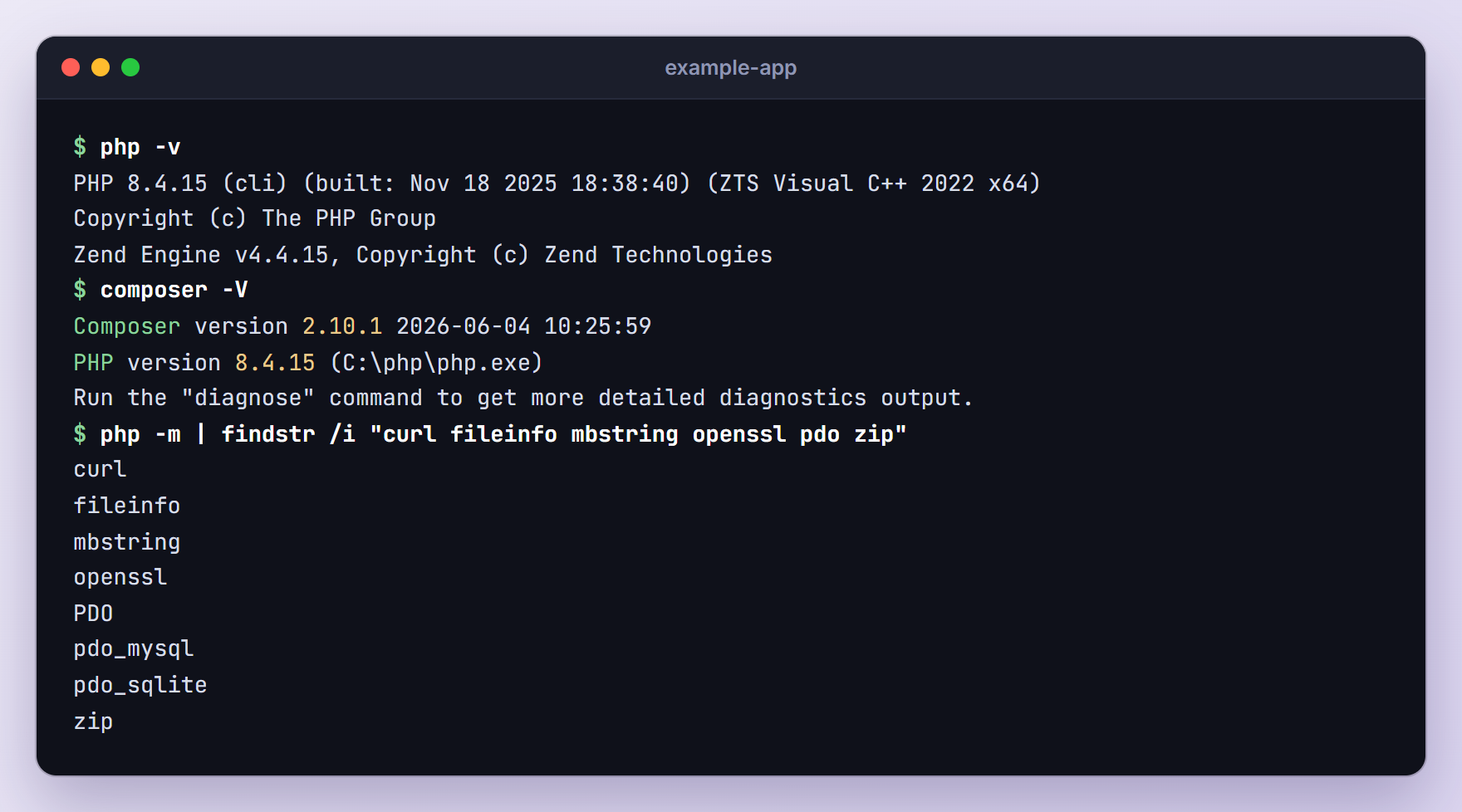
My test PC runs the thread safe build that WampServer ships, which is why my php -v says ZTS. The NTS zip prints NTS in the same place. If a line is missing, php --ini shows which php.ini PHP actually loaded.
Creating Your First Laravel 13 Project
Pick a folder for your projects, such as C:\Users\you\Code, and open a terminal there.
With composer create-project
composer create-project laravel/laravel example-app
cd example-app
Composer copies the Laravel skeleton, creates .env, installs about 110 packages into vendor, generates APP_KEY, creates database/database.sqlite and runs the default migrations. The app is ready to serve when it finishes.
With the Laravel Installer
The Laravel installer is a global Composer package (Herd already includes it):
composer global require laravel/installer
Composer puts the laravel command in %APPDATA%\Composer\vendor\bin. If a new terminal cannot find laravel, add that folder to your Path; composer global config bin-dir --absolute prints its exact location. Now create the app:
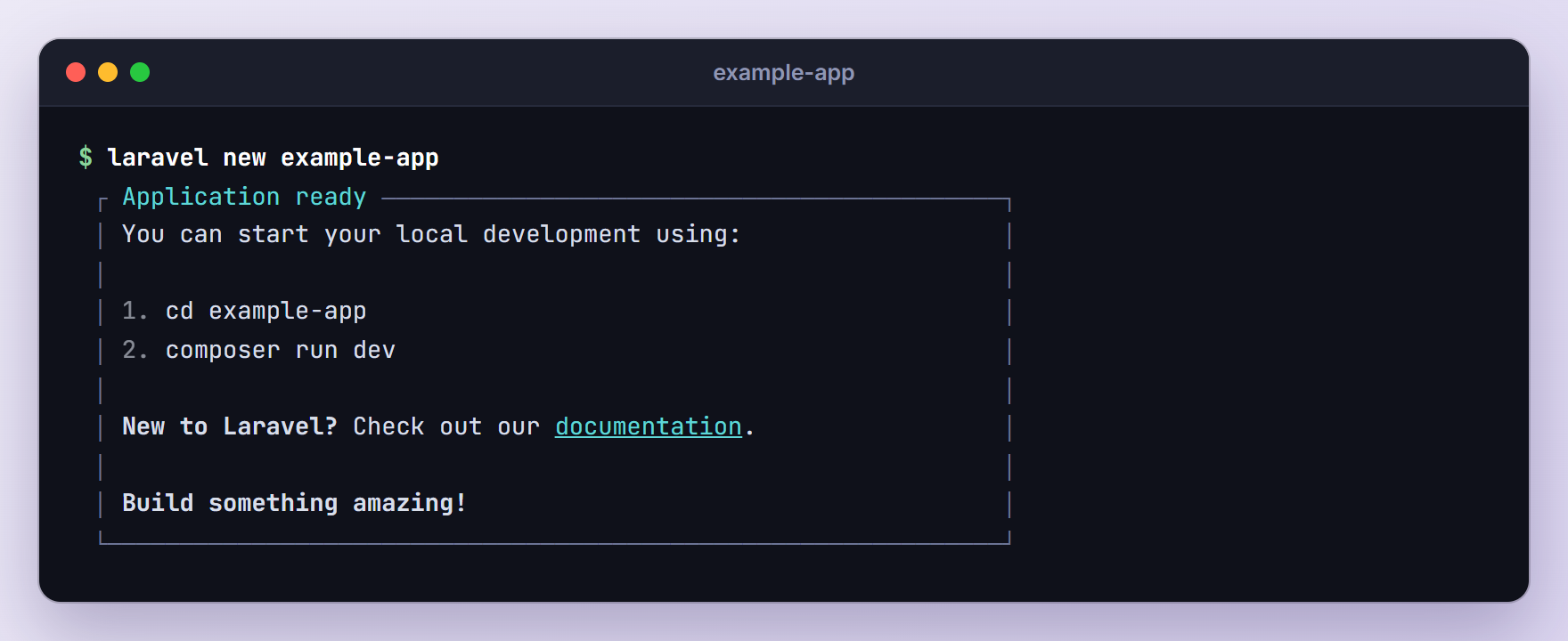
laravel new example-app
On Windows the installer shows plain text prompts. These are the first two, and pressing Enter accepts the default shown in brackets:
 Do you want to use a starter kit? (yes/no) [no]:
 >

 Which frontend stack do you want to build on? [Blade]:
  [blade   ] Blade
  [react   ] React
  [svelte  ] Svelte
  [vue     ] Vue
  [livewire] Livewire
 >
Answering yes to the first question switches to the starter kits instead: it asks for React, Svelte, Vue or Livewire, then Laravel’s built-in authentication or WorkOS, and whether to add teams support (Livewire also asks about single-file components).
The installer (version 5.32 at the time of writing) does not ask about the testing framework or the database. It picks SQLite and runs the migrations, replaces PHPUnit with Pest, runs npm install and npm run build, and installs Laravel Boost, the AI coding helper. Boost asks which features, integrations and AI agents to configure, with the agents it detects selected already. Flags change these defaults: --phpunit, --database=mysql, --no-node and --no-boost. After a few minutes you see this:
Running Laravel 13 With php artisan serve
Start PHP’s built-in web server from the project folder:
php artisan serve
By default it listens on http://127.0.0.1:8000. Open that address and you get the Laravel 13 welcome page:
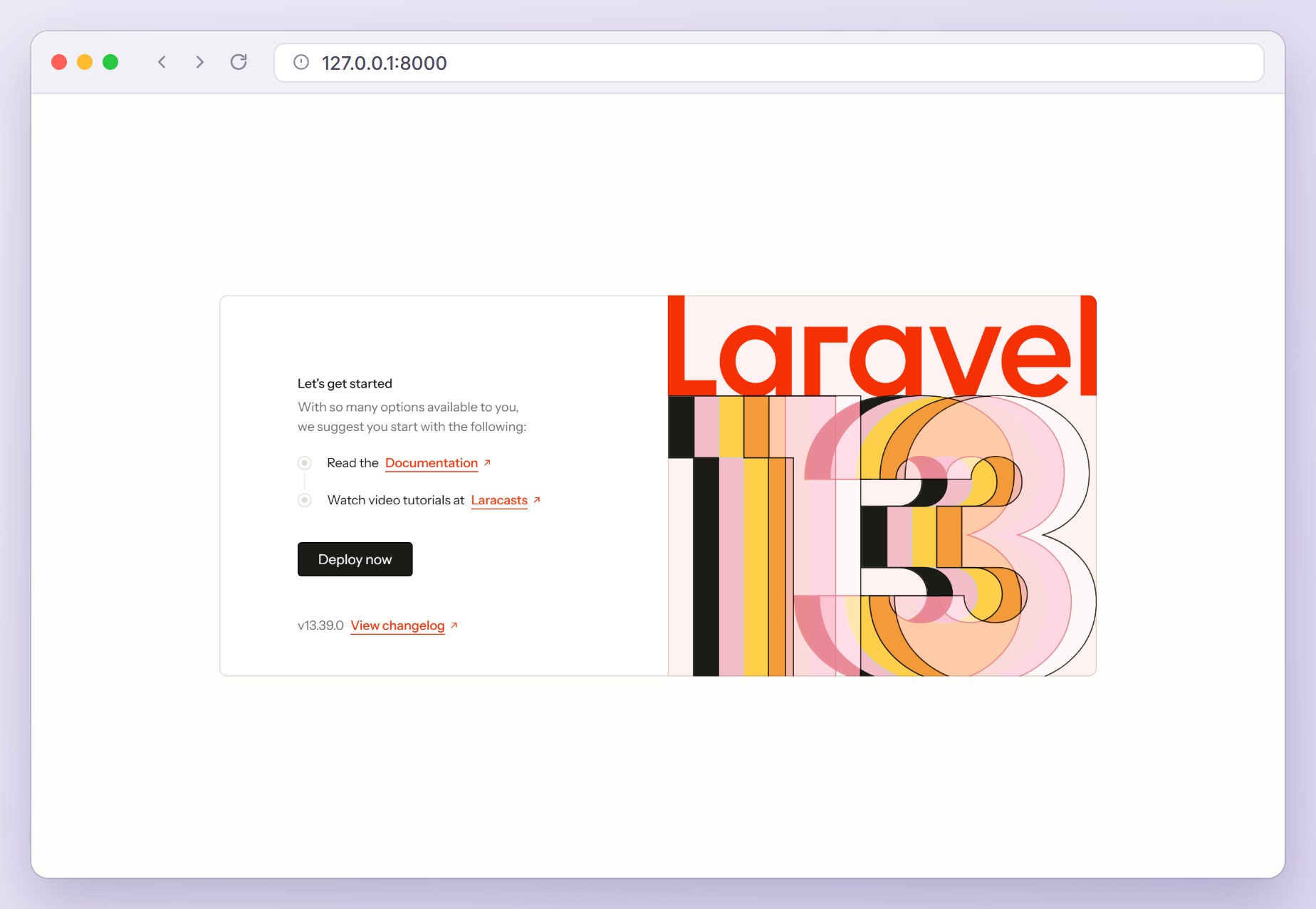
Press Ctrl+C to stop the server. The installer’s final message suggests composer run dev instead, which starts the server, a queue worker and the Vite dev server in one terminal (Vite needs Node.js, covered below). On Windows it printed:
> Composer\Config::disableProcessTimeout
> @php artisan dev
[server] php artisan serve
[queue]  php artisan queue:listen --tries=1 --timeout=0
[vite]   npm run dev
Laravel skips its Pail log viewer here because Pail needs the pcntl extension, which PHP for Windows does not have. There is no cron either, so to run scheduled tasks locally use php artisan schedule:work, as our Laravel 13 task scheduling guide shows.
SQLite by Default, MySQL When You Need It
A new app uses SQLite, so .env contains DB_CONNECTION=sqlite and the whole database is the file database/database.sqlite. No database server is involved.
To switch to MySQL, you need a running MySQL server: Herd Pro, the MySQL that comes with WampServer or XAMPP, or a standalone install. Update the database block in .env (new apps comment these lines out, so remove the # signs):
DB_CONNECTION=mysql
DB_HOST=127.0.0.1
DB_PORT=3306
DB_DATABASE=example_app
DB_USERNAME=root
DB_PASSWORD=
Then run the migrations:
php artisan migrate
If example_app does not exist yet, Laravel 13 says so and asks “Would you like to create it?” Answer yes and it creates the database, then runs the migrations. Details are in the database docs.
Installing Node.js and npm for Vite
Laravel compiles CSS and JavaScript with Vite, so install Node.js from the Node website or through Herd, which bundles it. Choose Node.js 22 or newer: Vite 8 in a new app requires Node 20.19 or 22.12 and newer, and composer run dev uses the concurrently package, which requires Node 22. Check your versions with node -v and npm -v.
Inside the project:
npm install
npm run build
npm run build writes the compiled files to public/build. While you work on CSS or JavaScript, run npm run dev instead (or composer run dev, which includes it) so the browser reloads on every change. See the Vite docs for more.
Where WSL 2 and Laravel Sail Fit
Laravel Sail is a light command line interface for Laravel’s Docker development environment, which runs PHP, MySQL, Redis and other services in containers. The Sail docs state that it is supported on Windows only through WSL 2. You enable WSL 2 with wsl --install in an administrator PowerShell, install Docker, and then work inside the Linux distribution: install PHP and Composer there, create the app, and add Sail with composer require laravel/sail --dev and php artisan sail:install. From then on, ./vendor/bin/sail up starts everything.
That is the setup with the most moving parts. Choose it when you need the same services as your Linux servers, or when your team already uses Docker. For learning and most day-to-day work, Herd or plain PHP is faster.
Verifying the Installation
php artisan about summarizes the setup. The top of mine:
  Environment ....................................................................................
  Application Name ....................................................................... Laravel
  Laravel Version ........................................................................ 13.39.0
  PHP Version ............................................................................. 8.4.15
  Composer Version ........................................................................ 2.10.1
A small test makes the check repeatable. Generate it with php artisan make:test EnvironmentTest, then replace tests/Feature/EnvironmentTest.php with:
<?php

namespace Tests\Feature;

use Illuminate\Foundation\Testing\RefreshDatabase;
use Illuminate\Support\Facades\Schema;
use Tests\TestCase;

class EnvironmentTest extends TestCase
{
    use RefreshDatabase;

    public function test_php_has_the_extensions_laravel_needs(): void
    {
        $extensions = [
            'ctype', 'curl', 'dom', 'fileinfo', 'filter', 'hash', 'mbstring',
            'openssl', 'pcre', 'pdo', 'pdo_sqlite', 'session', 'tokenizer', 'xml',
        ];

        foreach ($extensions as $extension) {
            $this->assertTrue(extension_loaded($extension), "The {$extension} extension is not enabled.");
        }
    }

    public function test_the_default_migrations_run_on_sqlite(): void
    {
        $this->assertSame('sqlite', config('database.default'));
        $this->assertTrue(Schema::hasTable('users'));
        $this->assertTrue(Schema::hasTable('jobs'));
    }
}
The first test checks Laravel’s required extensions plus pdo_sqlite. The second runs the default migrations on the in-memory SQLite database from phpunit.xml, which proves the driver works. Run the suite:
php artisan test
Tests: 4 passed (19 assertions)
The other two tests ship with Laravel. When I ran the suite with fileinfo disabled, the first test failed with “The fileinfo extension is not enabled.”
Updating PHP, Composer and the Laravel Installer Later
With Herd, updates come through the app: it checks for new Herd, PHP and Node.js versions, herd php:update 8.4 updates one PHP version, and the Laravel installer can be updated in the PHP tab of the settings.
With a manual setup:
- PHP: unzip the new version into a new folder such as
C:\php85, copy your php.ini over (or repeat the edits on a copy of its php.ini-development), point PATH at the new folder and checkphp -v. - Composer: run
composer self-update. - Laravel installer: run the command below.
composer global update laravel/installer
The installer also checks Packagist itself. When a newer version exists, laravel new prints a warning and asks “Would you like to update now?”, and answering yes runs the global update for you.
Troubleshooting
“‘php’ is not recognized as an internal or external command”
Command Prompt prints this when no folder on PATH contains php.exe:
'php' is not recognized as an internal or external command,
operable program or batch file.
PowerShell reports that the term ‘php’ is not recognized. Check that C:\php\php.exe exists, that C:\php (not C:\php\php.exe) is in your Path variable, and that you opened a new terminal after the change. The same goes for composer and laravel. where php lists every php.exe that Windows finds.
Missing PHP Extensions (“it is missing from your system”)
A missing extension shows up differently depending on which one it is. These are the messages I got with each one disabled:
- openssl: Composer stops right away with “The openssl extension is required for SSL/TLS protection but is not available.”
- fileinfo:
composer create-projectstops withleague/flysystem-local 3.35.3 requires ext-fileinfo * -> it is missing from your system. Install or enable PHP's fileinfo extension. - mbstring: Composer installs anyway, because the symfony/polyfill-mbstring package stands in for it, but
php artisan aboutcrashes withCall to undefined function Termwind\ValueObjects\mb_strimwidth(). - zip: Composer used 7-Zip, which it looks for in
C:\Program Files\7-Zip, so nothing failed on my PC. Without zip, unzip or 7-Zip it stops with “The zip extension and unzip/7z commands are both missing, skipping.”
The fix is always the same: remove the semicolon in front of the extension= line in the php.ini that php --ini reports, and open a new terminal. Composer’s error message names that file too.
“could not find driver”
This message means PHP lacks the PDO driver for your database. With pdo_sqlite disabled, composer create-project printed a WARN line during its migration step, and php artisan migrate stopped with an Illuminate\Database\QueryException whose message begins with could not find driver (Connection: sqlite, followed by the database path and the SQL query.
After switching .env to MySQL without pdo_mysql, the message says Connection: mysql, Host: 127.0.0.1, Port: 3306 instead. Enable extension=pdo_sqlite or extension=pdo_mysql, then run php artisan migrate again. If php artisan serve is running, restart it, because a running server keeps the old php.ini.
“curl error 60: SSL certificate problem”
When php.ini points openssl.cafile at an outdated or wrong certificate file, Composer cannot verify Packagist:
curl error 60 while downloading https://repo.packagist.org/packages.json: SSL certificate problem: self-signed certificate in certificate chain
Composer ships its own list of trusted certificates and uses it unless openssl.cafile (or the SSL_CERT_FILE variable) points elsewhere, so deleting a bad openssl.cafile line fixes Composer. Behind a company proxy or antivirus that inspects HTTPS, add its root certificate to the bundle you use.
Laravel’s own HTTP client is different. It uses PHP’s curl extension, which has no certificate list on a fresh Windows install, so a plain Http::get() request to Packagist failed with “cURL error 60” in my test. Download the CA bundle (cacert.pem) that the curl project publishes, save it as C:\php\cacert.pem and add both lines to php.ini:
curl.cainfo = "C:\php\cacert.pem"
openssl.cafile = "C:\php\cacert.pem"
With a current bundle, both Composer and the HTTP client worked in my tests.
“Failed to listen on 127.0.0.1:8000”
php artisan serve stops when another program holds its port. I blocked port 8000 with a small script and ran php artisan serve --port=8000:
Failed to listen on 127.0.0.1:8000 (reason: An attempt was made to access a socket in a way forbidden by its access permissions)
Without --port, Artisan tries the next port (8001, 8002 and so on, up to 10 tries), so for the default port 8000 you may just end up on 8001. Choose a free port yourself with php artisan serve --port=8080.
Windows has a second surprise. A second php artisan serve on the same port started without any error while the first one was still running, so an old server in a forgotten terminal can answer your requests. netstat -ano | findstr :8000 lists the connections on port 8000, with the process ID in the last column. Stop that server with Ctrl+C in its terminal, or with taskkill /PID <id> /F.
Frequently Asked Questions
Is Laravel Herd Free on Windows?
Yes. Herd itself is free to download and includes PHP, Composer, the Laravel installer, Node.js and the .test domains, which is everything this tutorial uses. Herd Pro is a paid upgrade that adds managed services such as MySQL, PostgreSQL and Redis, plus debugging tools. If Pro expires, Herd falls back to the free version.
Do I Need XAMPP or WampServer to Run Laravel?
No. Laravel needs PHP, Composer and a way to serve the public folder, and php artisan serve or Herd covers the last part. If you already have XAMPP or WampServer, you can reuse its PHP (8.3 or newer) and MySQL server: add its PHP folder to your PATH, enable the extensions above in the php.ini that php --ini reports, and point .env at its MySQL.
Is Laravel Homestead Still Supported?
Not really. The Laravel 13 docs describe Homestead as a legacy package without active maintenance and suggest Sail as the modern alternative, and Packagist lists the package as abandoned. Its last release, v15.0.3, came out in April 2024. Existing projects usually move over easily: copy them into the Herd folder, or run composer install and php artisan serve with your own PHP.
Which PHP Version Do I Need for Laravel 13?
Laravel 13 requires PHP 8.3 or newer and officially supports PHP 8.3, 8.4 and 8.5. I wrote this guide on PHP 8.4, and the same app passed its tests on PHP 8.5. On Windows, download the x64 Non Thread Safe zip of the version you choose, or let Herd install it.
Wrapping Up
You now have PHP, Composer and the Laravel installer on Windows, through Herd or by hand, and a Laravel 13 app that runs on SQLite with its frontend built by Vite. When something breaks, php --ini, php -m and where php answer most questions in seconds.
From here, the Laravel 13 installation docs cover the remaining configuration, and the tutorials below build real features on top of this setup.
Learn more about Laravel:
